- Get Started
- Video Tutorials
- Knowledge Base
- Channels
- Listings
- Inventory
- Orders
- Settings
- FAQs & Troubleshooting
How to Sync Listings from Shopify 、Amazon、TikTok、eBay、Etsy、WooCommerce、Shein store to eBay Store?
In 4Seller, products that have been released in Shopify, Amazon, TikTok, Etsy, eBay, WooCommerce, and Shein stores can be migrated to eBay stores through two methods: Copy to stores & Copy by shop.
Take shopify stores as example:
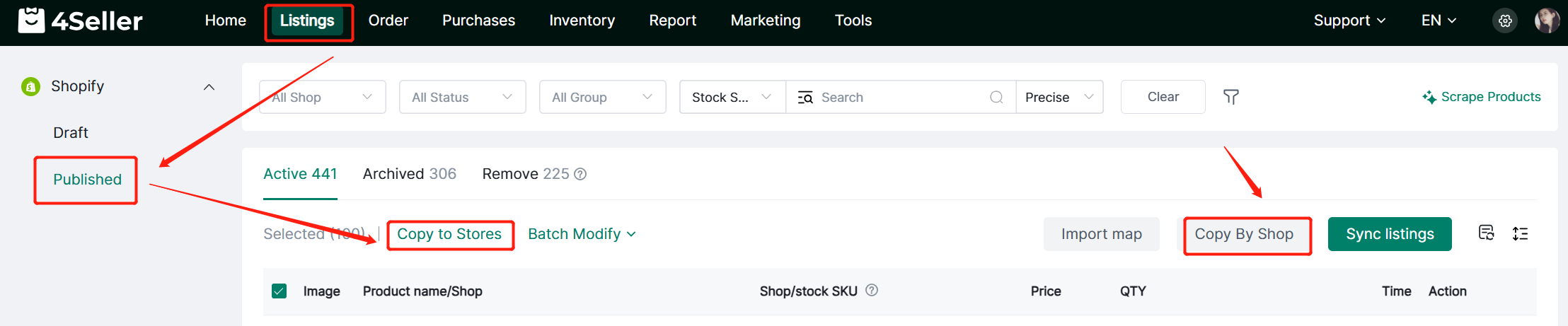
Entrance 1: Listings--Listing Migration
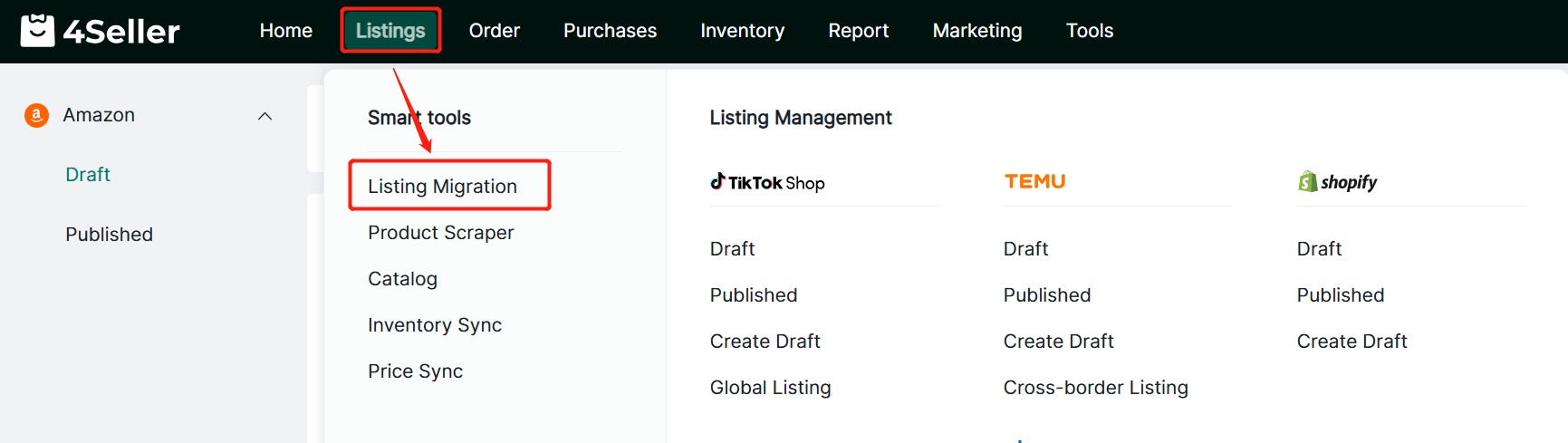
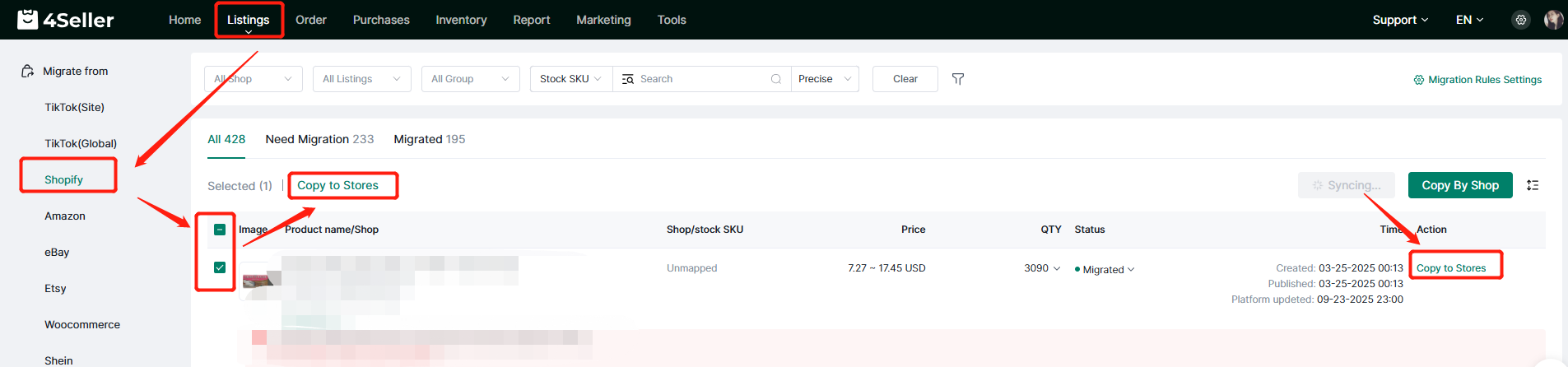
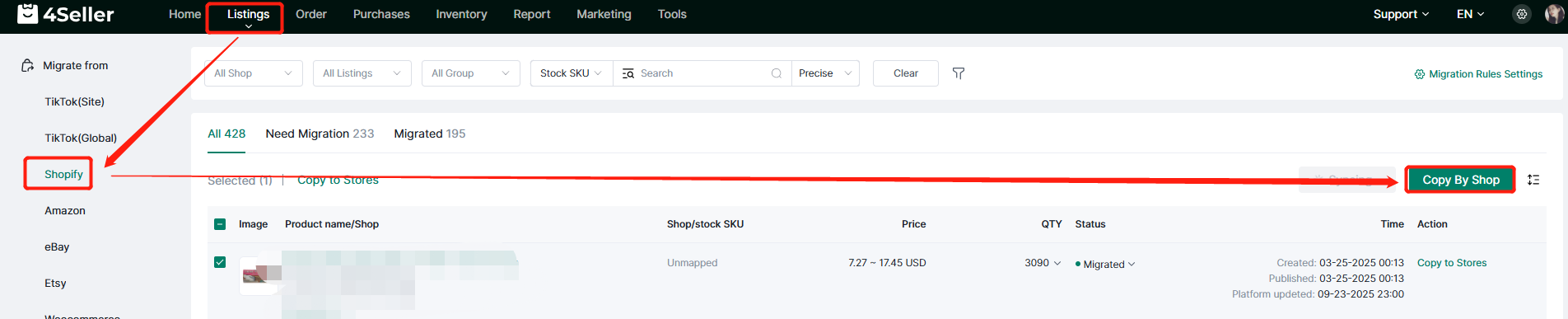
Entrance 2: Listings--Shopify Listing page--Published--Click Copy to Stores or Copy by Shop
Step 1 : Migrate to Shops
1. Copy to stores
(1) Single/ Batch operation
You can select single/ batch listings, click copy to stores to enter the migrating page.
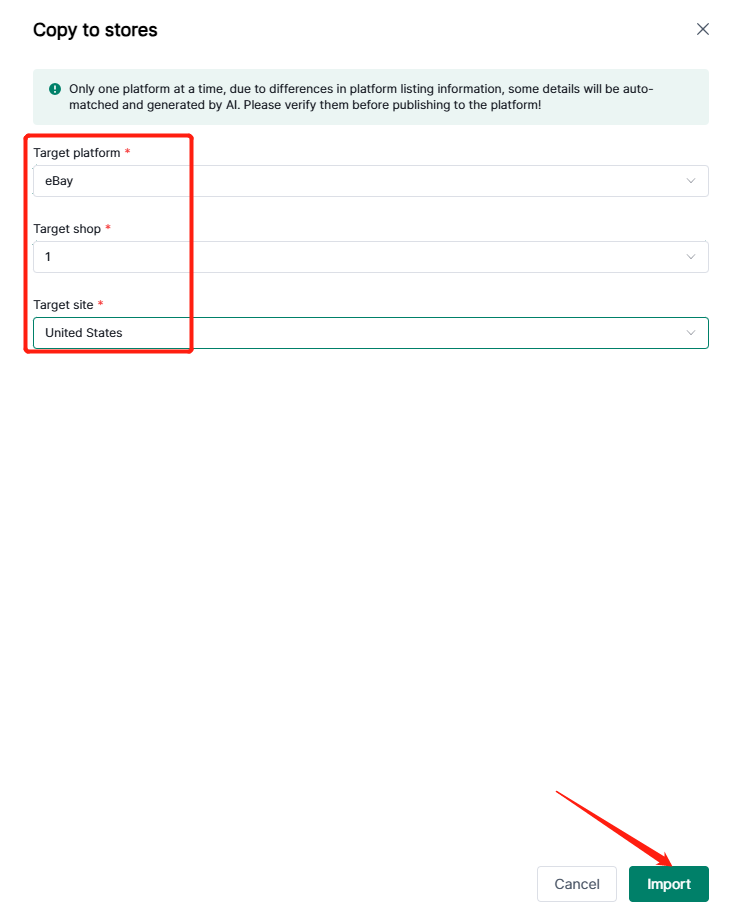
in the migrating page, pls take the action below:
1. Select the target platform and shop.
2. Select site.
3. Click Import button.
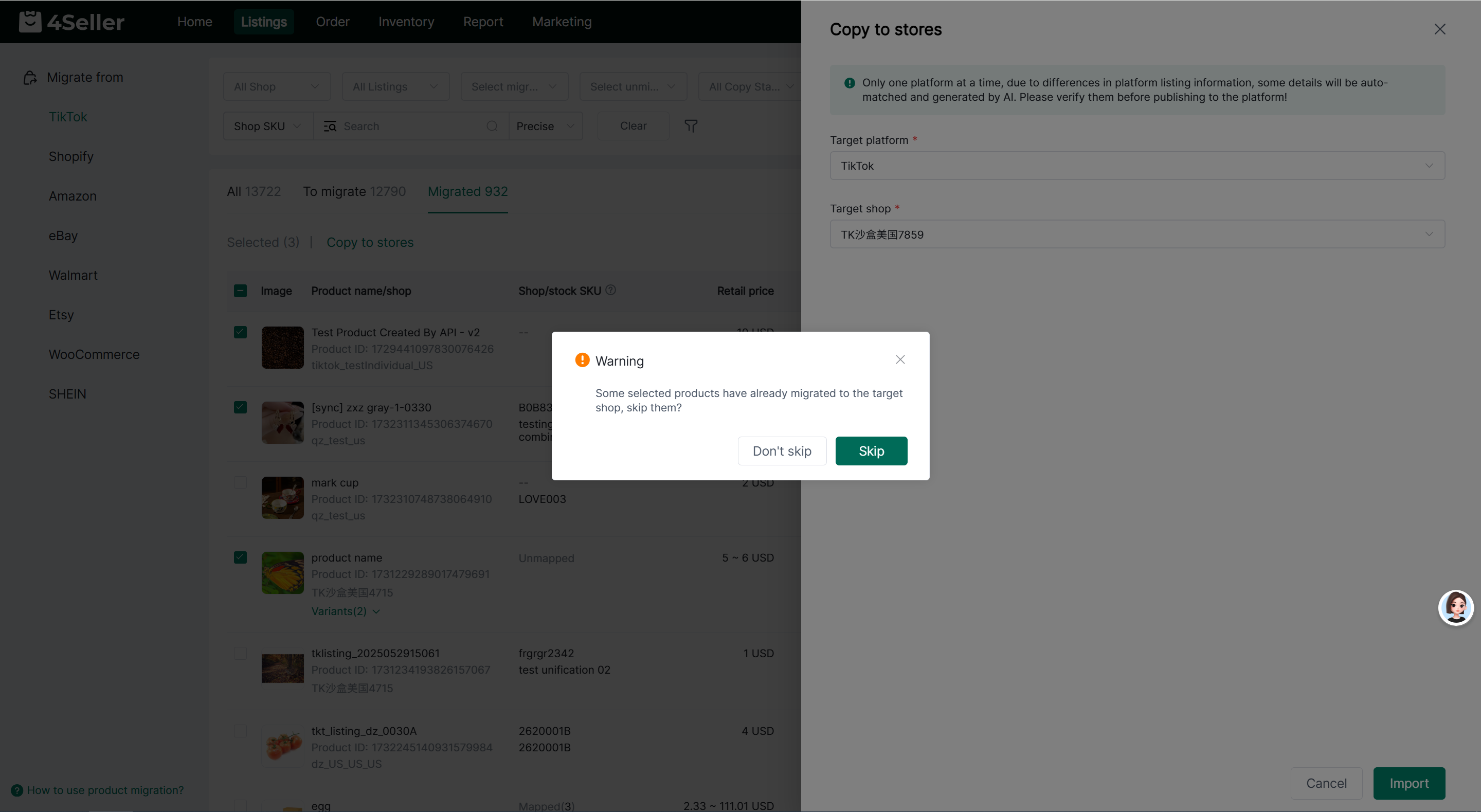
If some products have already been migrated to the target store, the system will prompt whether to skip these products. Click [skip] and the system will skip migrated products and continue migrating the rest; click [Do Not Skip] to migrate all products.
If all products have been migrated to the target store, the system will ask whether to proceed with migration. You may choose to continue or cancel as needed.
Note: Shopify and Amazon support selecting multiple target stores. The system will check the product migration status separately for each target store.
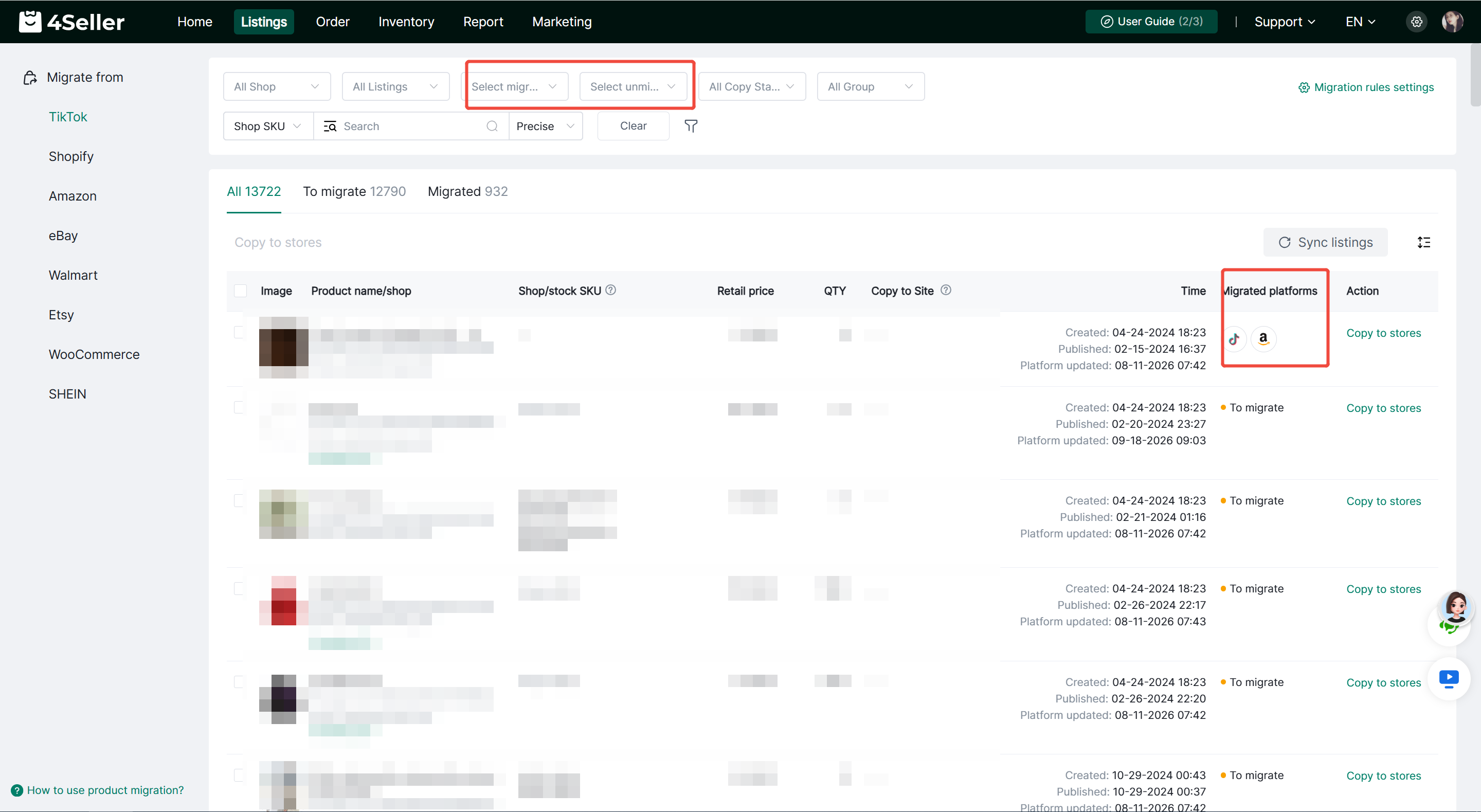
You can also filter products by [Migrated Stores] and [Unmigrated Stores] to quickly check the migration status of products for selected stores.
The [Migrated Platforms] column in the product list displays icons of platforms to which the products have been migrated. Click the platform icon to view details of the migrated product, including target store, product image, title, product ID, store SKU, price, status and migration time.
2. Copy by shop
On Shopify's published page, you can click the "Copy by shop" button to migrate all your store's products (up to 2000 items).
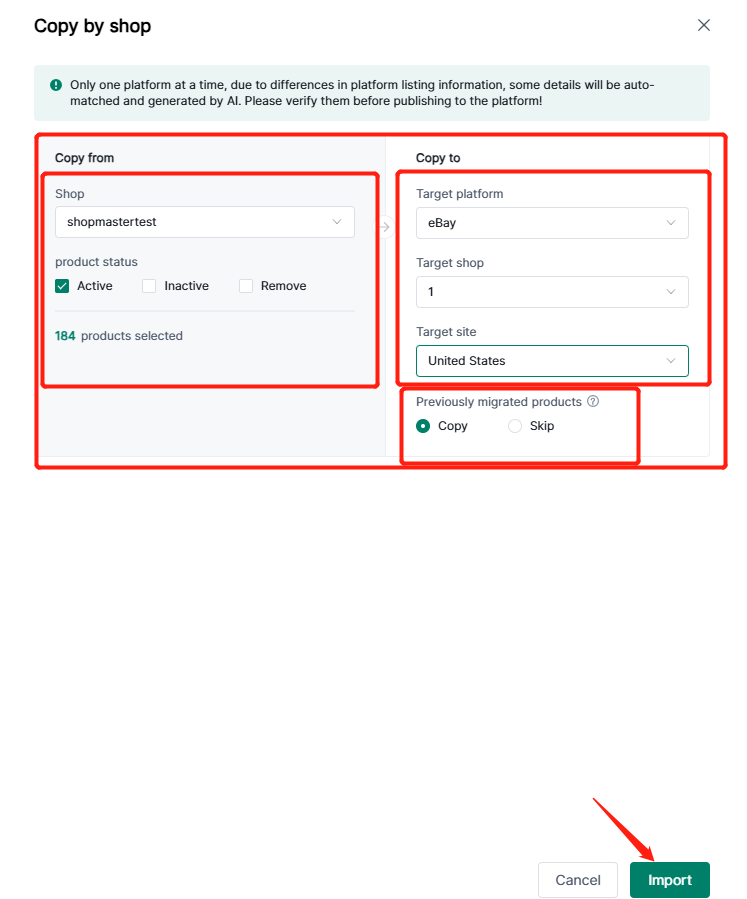
On the store migration page, you can perform the following operations:
1. Select the source store for the products you want to migrate.
2. Select the product status of the products you want to migrate.
3. Select the target store to which you want to copy the products.
4. You can choose to copy or skip duplicate products.
Finally, click Import to start the product migration.
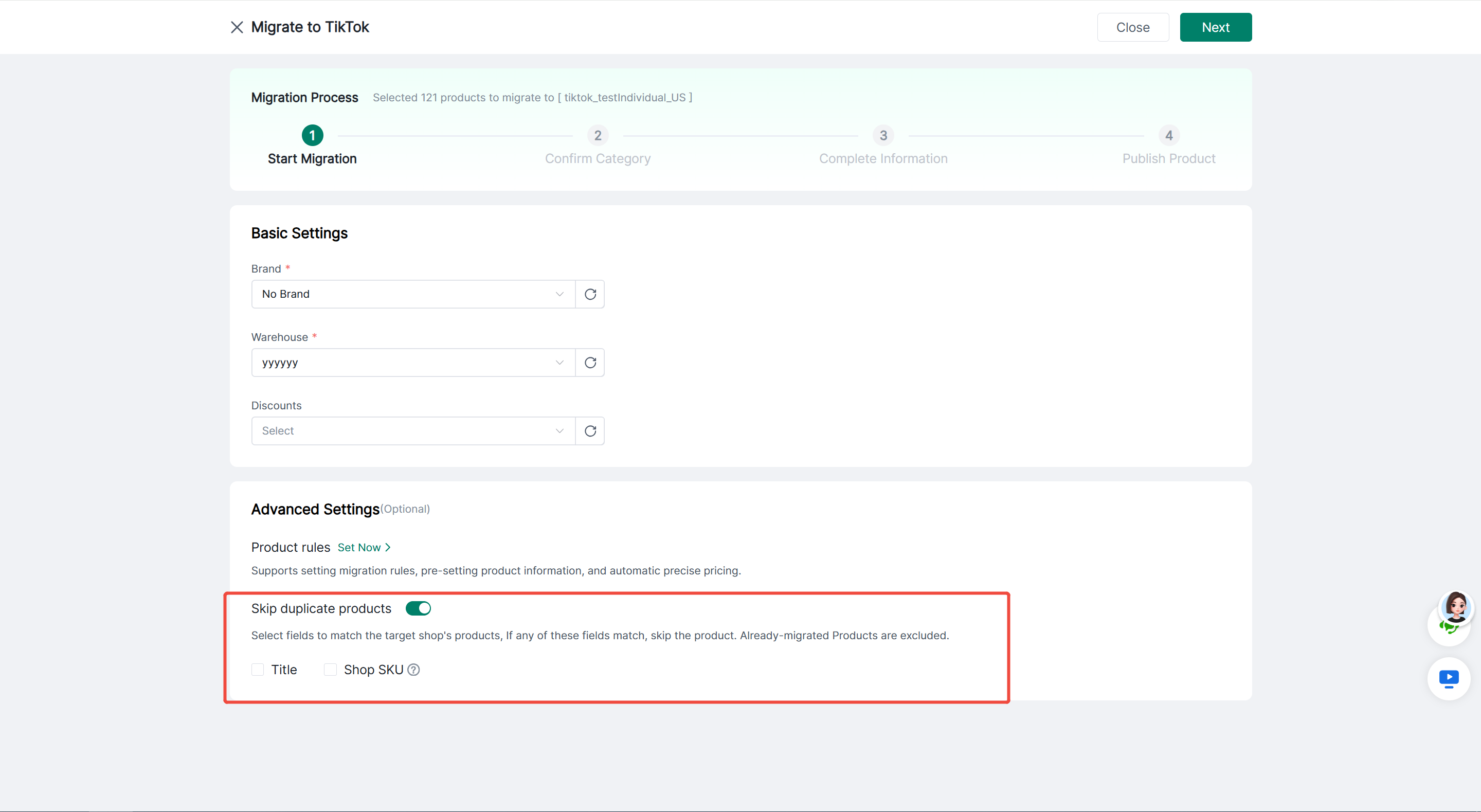
Copy by Shop supports the option to skip duplicate products. When enabled, you can select product matching fields in Advanced Settings:
- Title
- Store SKU
A product is identified as duplicate and skipped if any of the checked fields match. Previously migrated products are excluded from duplicate detection.
If some duplicates are detected, the system will show the quantity of products to be skipped and the quantity to continue migrating. If all products are duplicates, you must turn off [Skip Duplicate Products] before proceeding with migration.
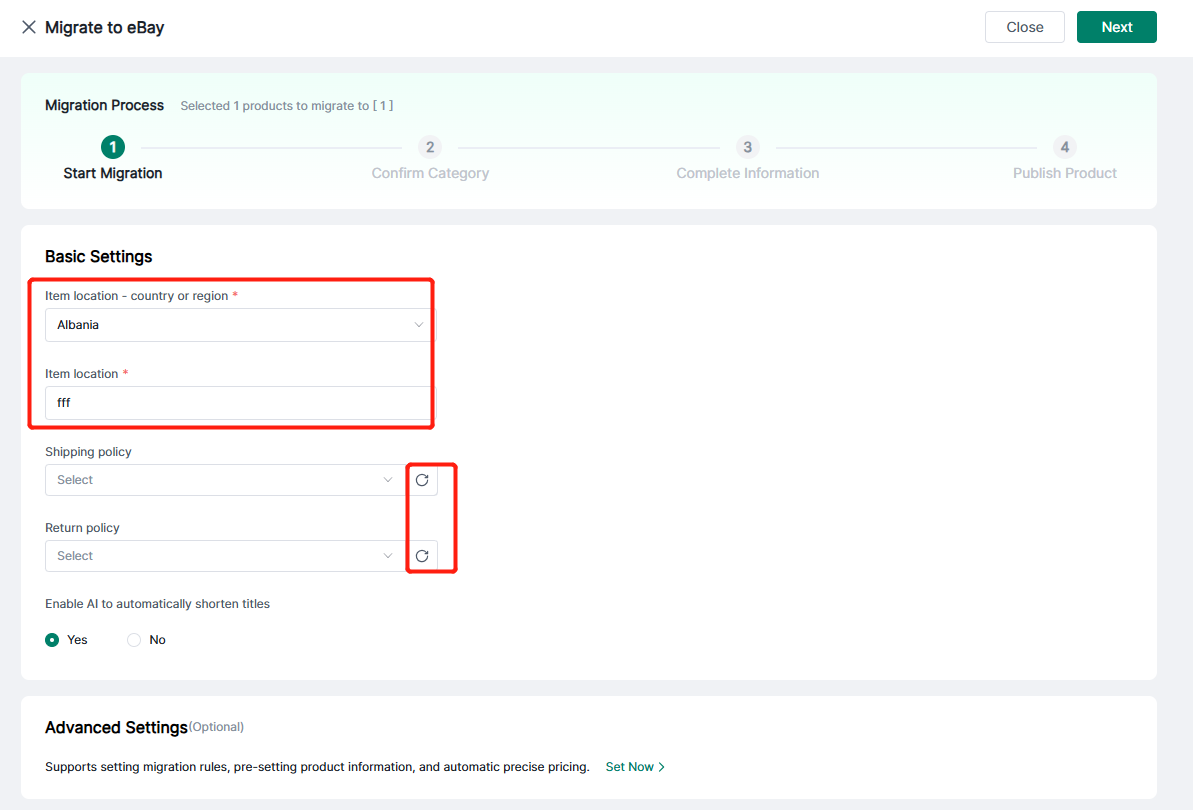
Step 2 Enter Migrate Page
1. Start Moving
Basic Settings:
-
Select the country/region where the item is located
-
Item location
-
Shipping and Return Policy (Click the refresh button to synchronize backend settings. If no settings have been configured, you need to configure them in the backend first before synchronizing.)
After completing the information, click Next.
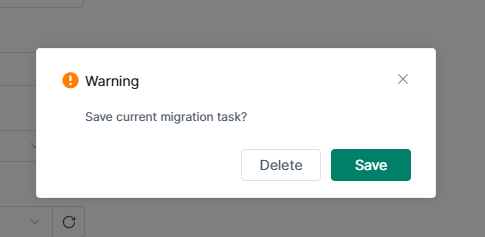
If you click "Close," the following prompt will appear, allowing you to choose whether to keep the following tasks.
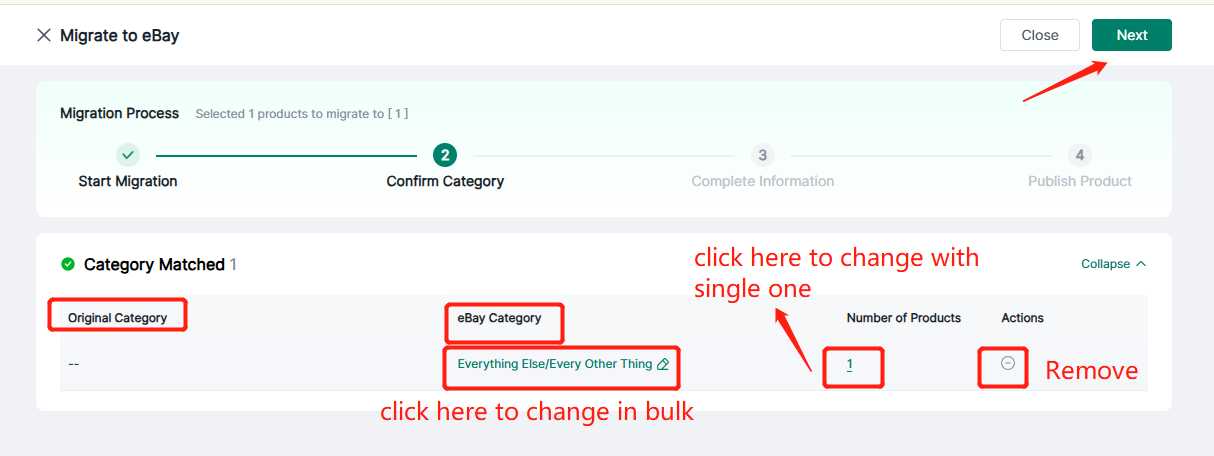
(2) Confirm Category
Confirm whether the original category matches the category matched by Ai. If modification is needed, proceed with the category modification -- finally click Next.
(3) Supplementary Information
Clicking "Next" will transfer the information to the target store.
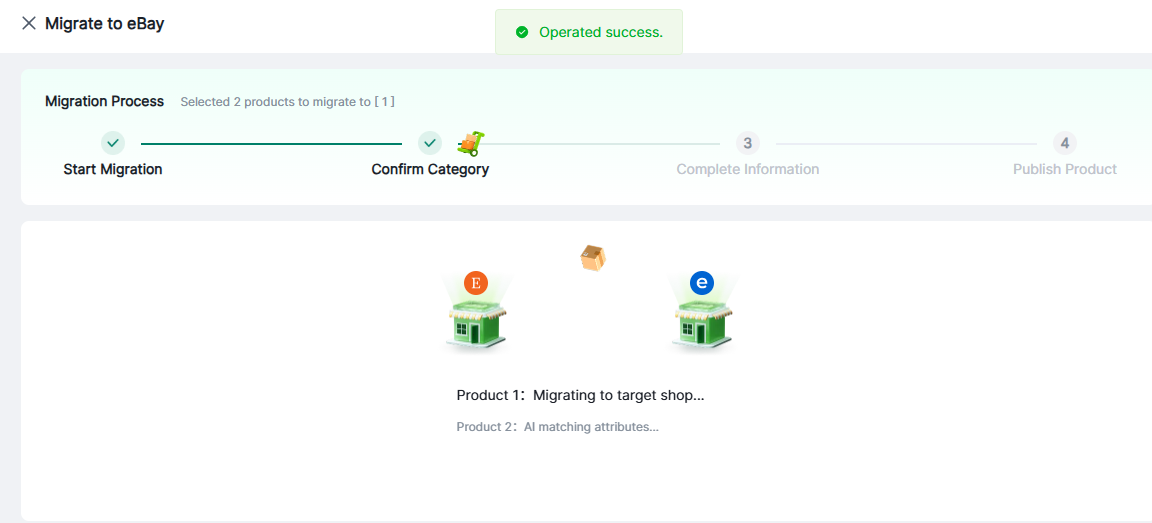
If additional information is required, the following three situations may occur:
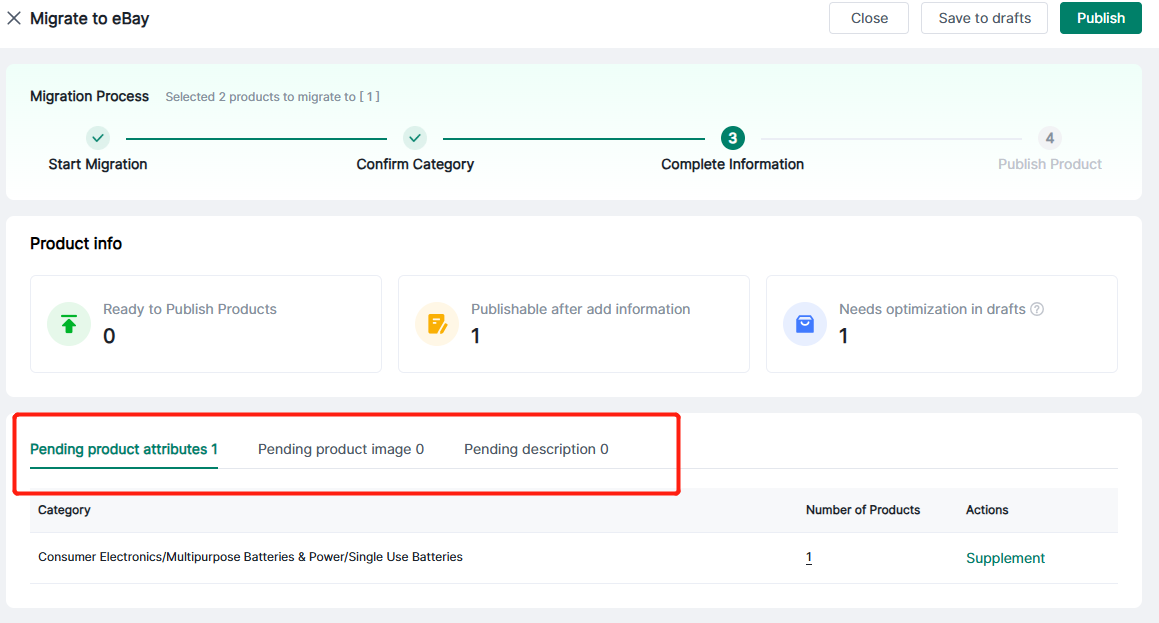
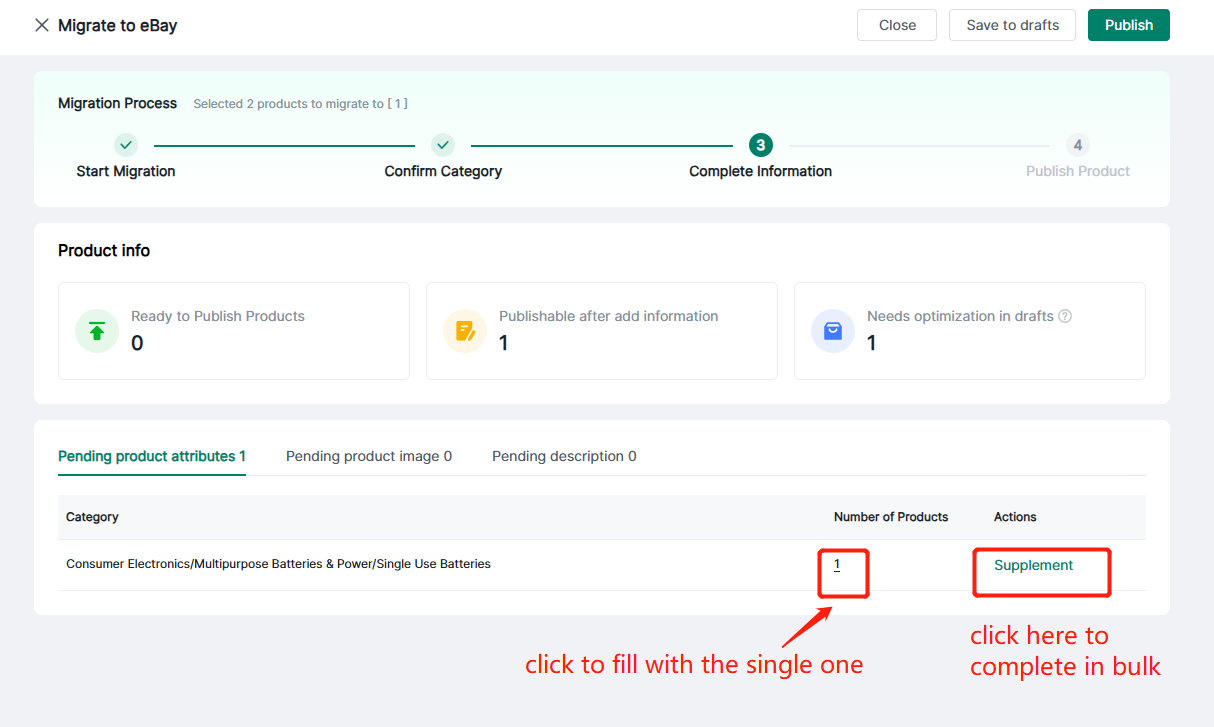
Follow these steps to populate the information.
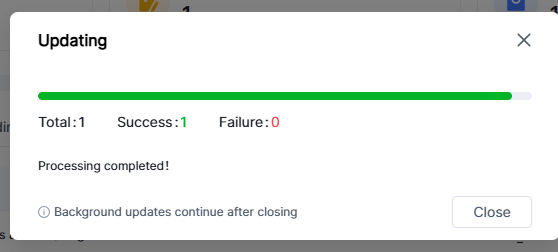
Once confirmed, a progress bar will appear to show the update progress.
After supplementing the information, if the product meets the publishing requirements, you can directly click "Publish" or "Save as Draft".
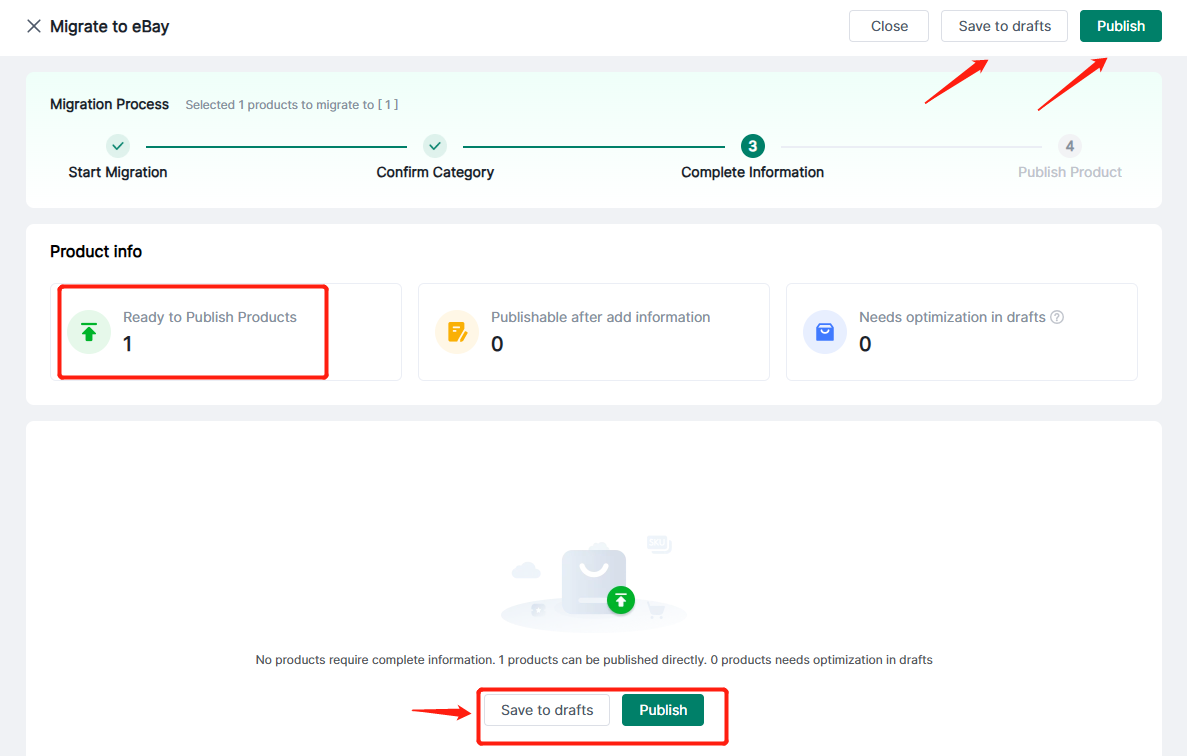
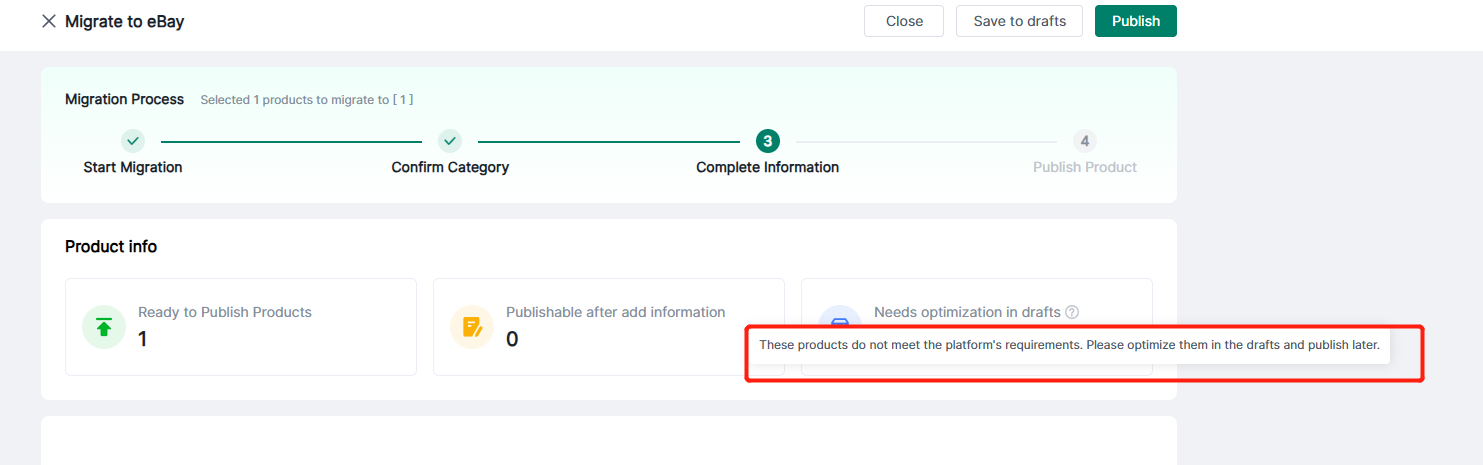
If the conditions for direct release are not met and there is still information to supplement, it will be classified as "Needs optimization in drafts".
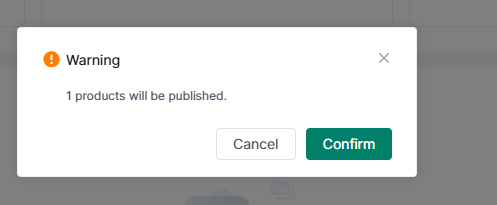
Clicking "Publish" will display the following pop-up window -- Click "Confirm".
(4) Publish Products
After clicking Publish, you can view the product publication status -- click Refresh Results to view the latest publication results -- click the corresponding status to enter the corresponding interface.
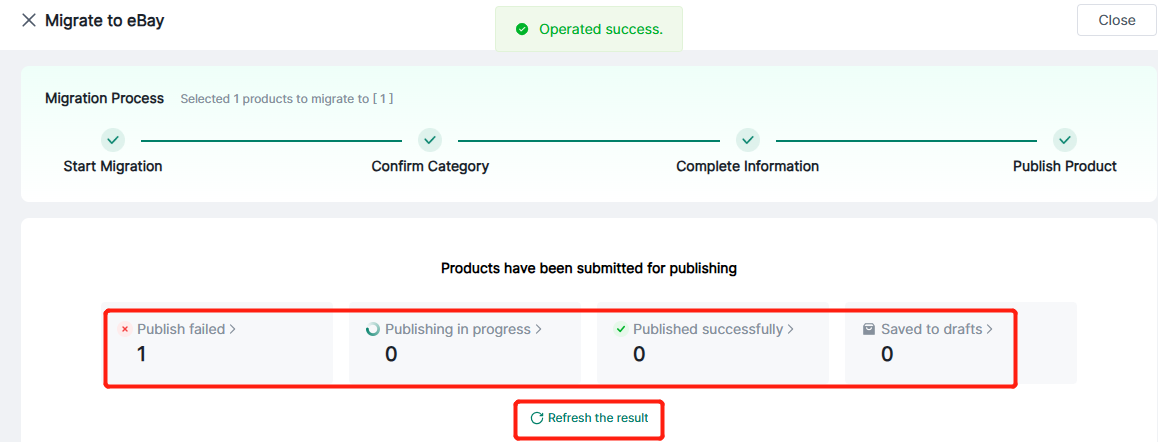
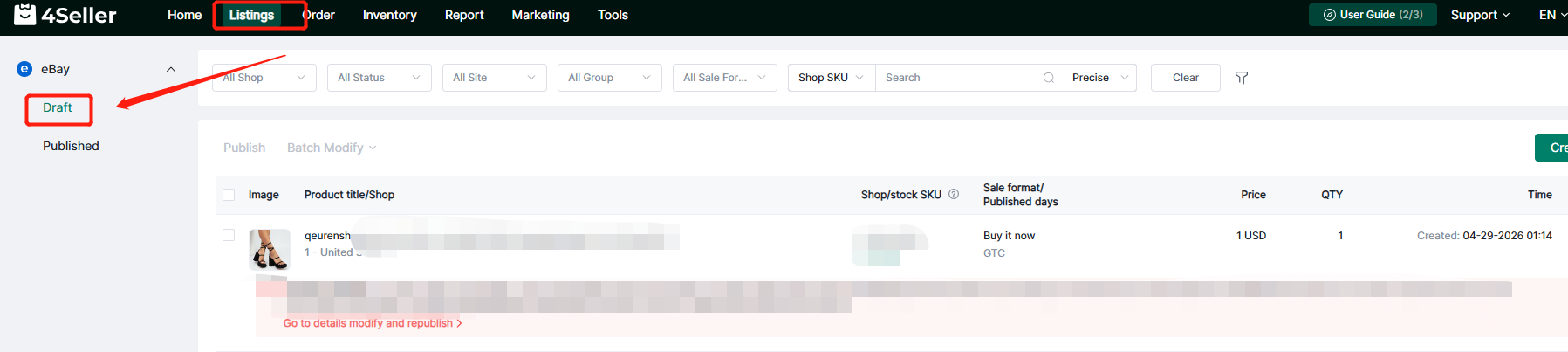
If the publishing is successful, it will appear in the published list,if the publishing fails, it will appear in the draft page.
View Migration Records
Product migration records are automatically updated according to the current product status:
After a product is migrated to the target store, the corresponding migrated platform and store will be recorded.
When a migrated product is deleted from the target store, the associated migration record will be automatically removed.
When the target store is deleted, all migration records linked to this store will be automatically cleared.
If all migrated stores are deleted, the product status will revert to Pending Migration.
You can use the filters [Migrated Stores] and [Unmigrated Stores] to quickly check whether a product has been migrated to the specified store, facilitating supplementary migration or re-migration later.
Any problem pls feel free to contact 4Seller support team: support@4seller.com